Allergen & dietary filters, gift cards & Stripe checkout
Allergen and dietary filters for all, a new home for your gift cards, a closer look at your checkout, and a few smaller updates.
Help every customer find meals they can eat
A customer with a dairy allergy should not have to read every ingredient list to find safe meals. With allergen and dietary filters, they tap once and see only the meals that work for them. They order with confidence, and you answer fewer "is this safe?" messages.
What your customers get:
- On the order page, filters in two groups: Include meals with, and Exclude meals with.
- On their account page, under Allergens & Dietary Preferences, they can save their own and the order page will automatically apply them.
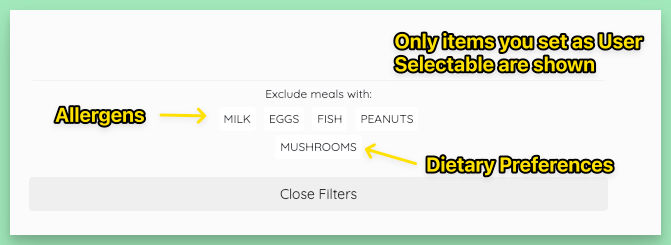
Of course, every meal card also lists the Allergens you've set for it.
How the filters decide: a meal is hidden when you tagged it with the allergen, or when its name, ingredients, recipe or components name it, as a whole word, singular or plural. Meal plan autofills use the same checks.
Customers only see filter options for the allergen and dietary filter marked User Selectable. Check yours:
- Fill in your list. On Meals > Allergens, Seed Defaults adds any of the nine major allergens your list lacks, plus our suggested keywords.
- Choose what customers see. Mark each allergen and dietary filter they should be able to pick as User Selectable. Only those show on the order page.
- Tag your meals with their allergens, and give them the tags that match your dietary filters, such as Vegetarian.
A word on safety: the filters are only as good as the tags and ingredients behind them. Check a new meal's allergens before it goes on the menu, and keep your own allergen and cross-contact statement on your FAQ page.
Learn more about allergens and dietary filters · Meal tags and filters
Gift cards moved
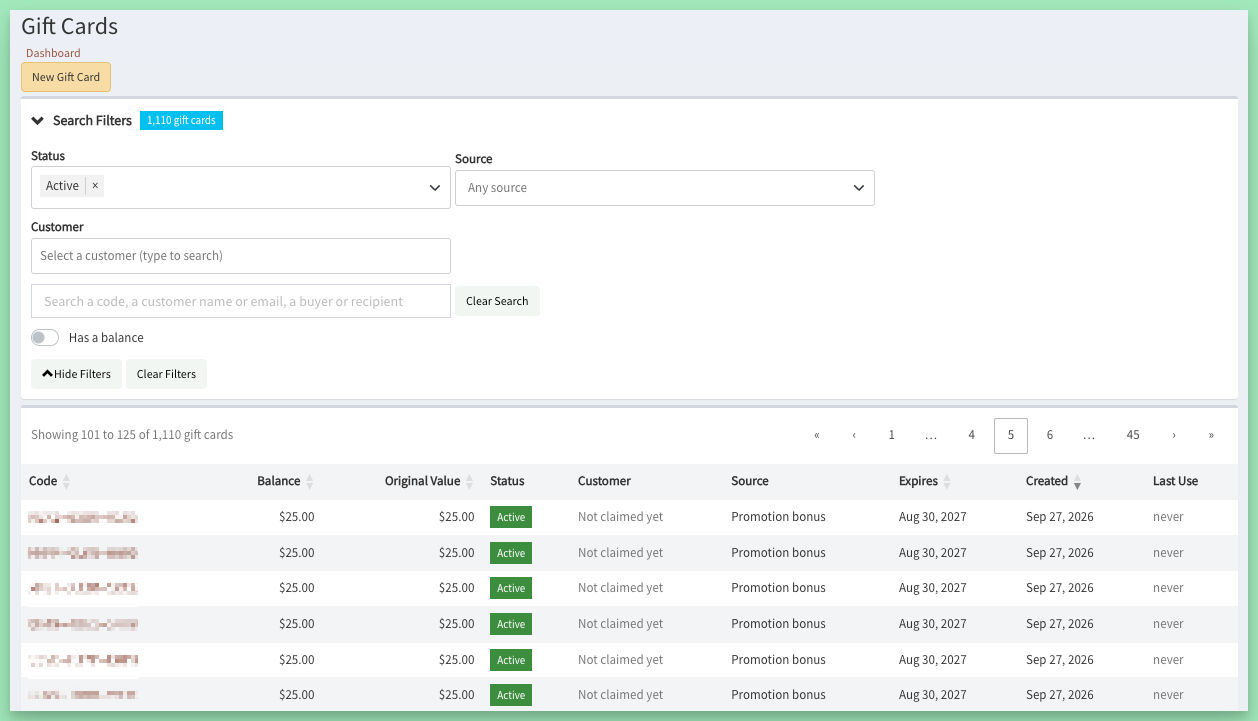
Gift cards now have their own page, Discounts & Credits > Gift Cards.
On the Gift Cards page:
- Find any card by code, customer, buyer or recipient, and filter by status or by source: bought, a promotion bonus, or made by an admin.
- Open a card to see its current balance, original value and full history: every spend with its order, and every change made on the Gift Cards page, with who made it.
- Managers can change a card's balance, expiry, status or customer, and make a new card.
- Staff with the Support role or higher can email an active card to its recipient again, with its current balance.
By the way, you know about the automated gift card promotions feature, right?
In your sales reports:
- Monthly Sales & Tax shows what customers paid with Credits and with Gift Cards in their own columns, and Cart Total and SubTotal include them. Both columns start with orders from September 15, 2026; before that date, gift card spend is under Discounts.
- The location report and the menu report totals count gift cards too.
- A new All-Time Gift Card Use report lists every gift card spend, card by card or order by order.
Learn more about the Gift Cards page · Your reports
Feature Highlight: Stripe Checkout
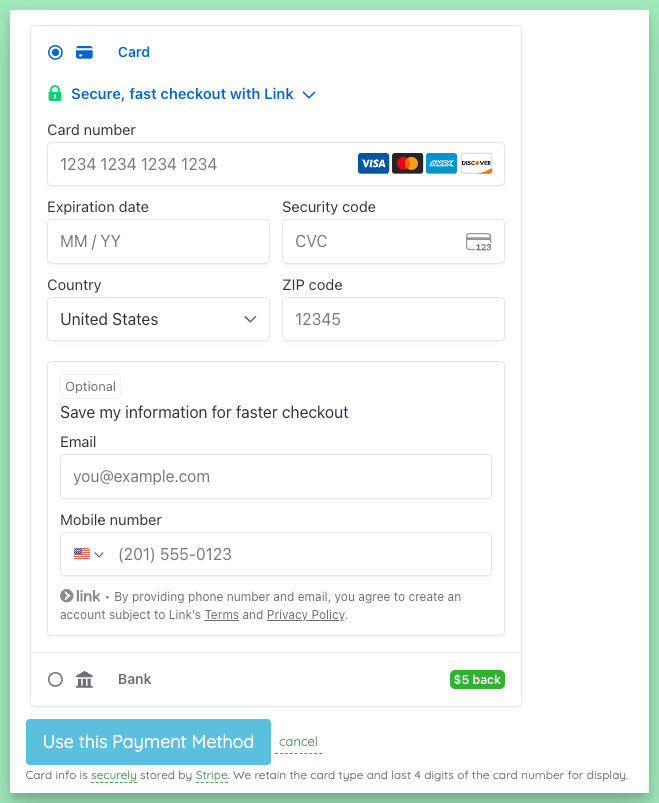
Stripe is the standard payment processor for Eat Fresh sites, enabling quick & secure payments, with strong fraud protections.
Here is what that means for you and your customers:
- Card numbers never touch your site. Stripe stores them. Your site keeps the card type, last four digits and expiry date, plus Stripe's reference to the card. It never keeps the card number or security code, keeping you (and us) PCI-compliant.
- One-tap checkout with Stripe Link. A customer who has saved a card with Link can use it with a tap and a verification, no card number needed.
- Bank checks are handled. Some banks ask the cardholder to approve a payment with a code or a tap in their banking app (3D Secure). At checkout, the bank's check pops up right on the order page, and nothing is charged until the customer approves it. On a plan renewal, when nobody is there to approve, the customer gets a Billing Update Required email that explains what to do, and the order waits on your Pending Orders page instead of failing silently.
- Payouts go straight to your bank, on a daily or weekly schedule.
- Customers can checkout with multiple forms of payment at once, paying with account credits, a gift card, and a major debit or credit card all on the same order.
Learn more about how your site takes payments
A few other updates...
- A new way to see your Eat Fresh plan. Your billing page now shows your plan alongside our other plans, so you can easily compare. Have questions about upgrading or downgrading or adding a feature you don't have yet? Hit up the chat widget from your dashboard.
- Duplicate a discount with a click. Click Copy on a discount in the list or on its page. The copy keeps the settings and starts turned off, so you can check it before customers can use it. How to create discounts
- Meal short codes are done. We no longer generate the short "E-12" style tags on meals, and they no longer show on orders, pending orders or the print slip. What customers see on their orders
- Per-schedule fulfillment notices. When you confirm a delivery or pickup, the order is marked completed for that schedule. Customers see it on their account page, and get your completion email, plus a text if you use SMS. We now support splitting the notifications by schedule, when an order spans multiple schedules.