Free Order fees, easy-to-guess codes, SMS reminders & Mailchimp tags
Free Order discounts where you choose the fees, a fix for easy-to-guess codes, set-and-forget SMS reminders, a Mailchimp tag library, and a few smaller updates.
You choose which fees to waive
Using the Free Order discount type? By default, the discount waives the meal cost, along with any order and delivery fees. If you want to only waive the meal cost, uncheck the Waive Delivery Fees and Waive Order Fees boxes.
- Tips are not waived, on purpose. Optional fees, like a tip the customer adds, or a late fee (if soft close is enabled) are not part of the discount, and are still paid by the customer.
- Fees can be waived separately. A fee can also be left off independently of the applied discount: check the Waive for orders with $0 subtotal option on the fee. Fees and tips
- Comp plans follow the discount rules. Customer plans that use Comp Plan Orders also use a Free Order discount, so the meals and fees are on you, and a tip the customer adds is charged to their card.
A comp plan customer who tips needs a card or credits on file: with no form of payment, that order is not placed and they get an email asking for one. Once they add one, open the order on your Pending Orders page and click Finalize Now.
Comp Plan Orders · Learn more about Free Order discounts
Fixing easy-to-guess codes
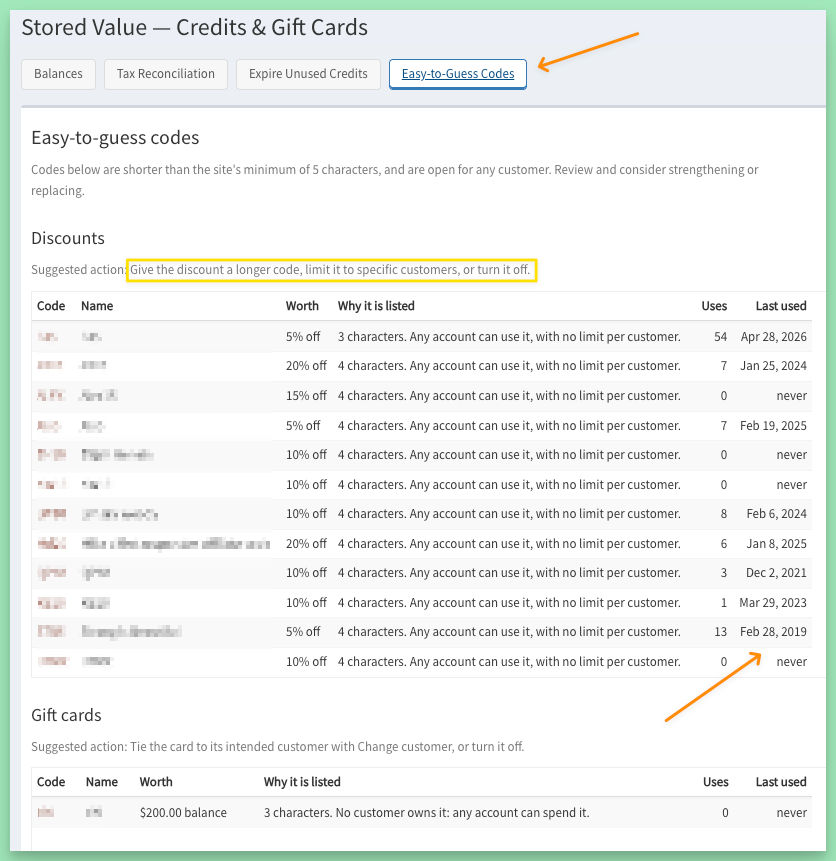
Previously, there was no minimum length for discount codes (or gift card codes). Now, sites default to a 5-character minimum.
Want to loosen (or tighten) that rule? Managers can change the number with the Min Code Length setting under Manage Site > Settings. Codes you already have keep working.
Short codes you already created may be easy to guess. Find and fix them with the new Easy-to-Guess Codes tab on Discounts & Credits > Stored Value.
Learn more about easy-to-guess codes · How to create discounts
Set & forget SMS order reminders
People are busy. And forgetful. Give them a nudge around your weekly cutoff with an order reminder on the device they're already staring at.
Set it up once and let it run on autopilot week after week. Or go in and adjust the message based on the season or what's going on with your service.
- Want to send a one-off or re-send? Use the Send Now button.
- Need to skip a week? Hit the Skip a week button (handy for a holiday closure).
- Or turn on the new Skip when no menu takes orders at the send time setting under Recurring, and a weekly reminder skips the weeks when no menu is open for orders. Your team gets an email when it skips.
Did you know? Eat Fresh Tech is (probably) the only company that lets you pay after sending texts, rather than requiring you to keep a credit balance. Keep the Bill After Bulk Send setting on, and you're billed after each bulk send.
New: SMS Turned Off email. Each time text messaging turns off, your team gets an SMS Turned Off email with the reason.
New: one phone number, one text setting. When several accounts have the same phone number, an SMS preference change on one account now syncs to all of them. Useful for customers who "forget" they already have an account and set up a new one under a different email address.
New: faster bulk texts. On some plans, bulk texts now go out about twice as fast: about 20 minutes for 2,400 texts instead of 40. Compare plans on your billing page.
How to edit SMS order reminders · The Messaging dashboard · SMS text messaging
Keep your Mailchimp tags in sync
If you use Mailchimp for marketing emails, the Mailchimp integration now includes a Tag Library that shows each tag with its current name in Mailchimp, so what you see on your site matches your audience. You can fix a tag right there instead of juggling two lists.
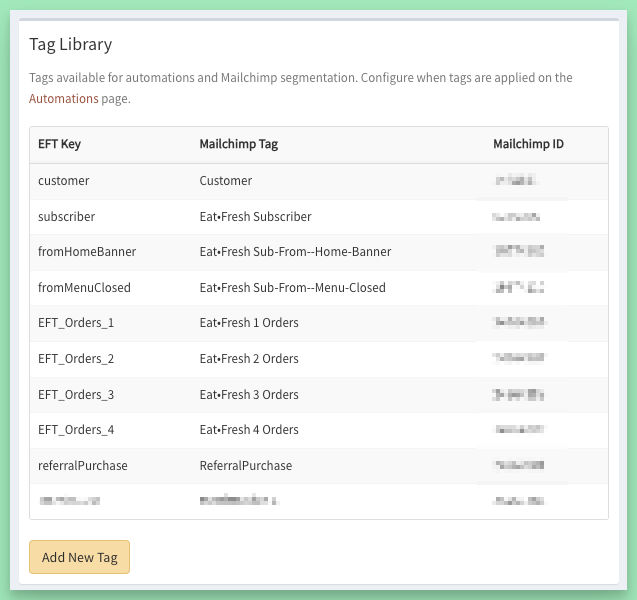
- Rename a tag, here and in Mailchimp at once. Any automations you set up to use the tag keep working.
- Change Tag points a tag at another tag in your Mailchimp audience. Automations that use it apply the new tag from then on.
- Remove a tag you no longer need from the library. It stays in Mailchimp. A tag that an automation uses stays until you change that automation.
- Add Tag with just a name. If Mailchimp already has a tag with that name, the site links it instead of making a second one.
Find it under Manage Site > Integrations > Manage MailChimp. Owners and managers can change tags.
Learn more about Automations · Mailchimp integration
A few other updates...
Carts carry over at login.
- A customer can fill a cart before they log in. Now, whether they log in from the account page or the order page, the cart moves to their account.
- If they already have a saved cart with meals on that menu, we keep the saved one and show a Your Saved Cart notice, so they know what happened.
How carts and pending orders work
Clearer and more informative emails.
- When a plan renewal is charged but makes no order of its own, because the plan already has an open order or the menu isn't open for orders yet, the customer's renewal email says why.
- The order confirmation and your new-order email show the delivery or shipping address saved on the order, and the confirmation includes the customer's delivery instructions for local delivery.
- Order times use your site's time zone.
- A gift order with no message doesn't print an empty message line.
- Menus grouped by week show the week and day by meal.
Food labels on multi-day orders. When your labels print the delivery date, each meal on an order with more than one delivery day gets its own date. Printing labels
See what a plan includes. On a customer's account page, a products or package plan lists what the plan includes, even when there is no open order. Meal plans and renewals
Customer gift cards. On the user management page, a new gift cards panel lists any cards with a balance linked to that customer.
Roles that fit the job. We updated some admin pages and actions so each role can do what it needs. See what each role can do