Site Popups, an admin order builder, delivery days by location & a new admin look
Build your own site popups, take orders for your customers, give any location its own delivery day, a first look at the refreshed admin, and a few smaller updates.
New! Build your own site popups
We've supported external popups and other widgets through third-party integrations for some time (and still do), but are now building our own first-class versions of popular tools.
First up, and now available, Site Popups.
The first time a visitor lands on your page, it's critical to draw them in before they leave. With Site Popups, you can greet new visitors with a discount code for joining your email list, or point everyone to something new, like a seasonal special.
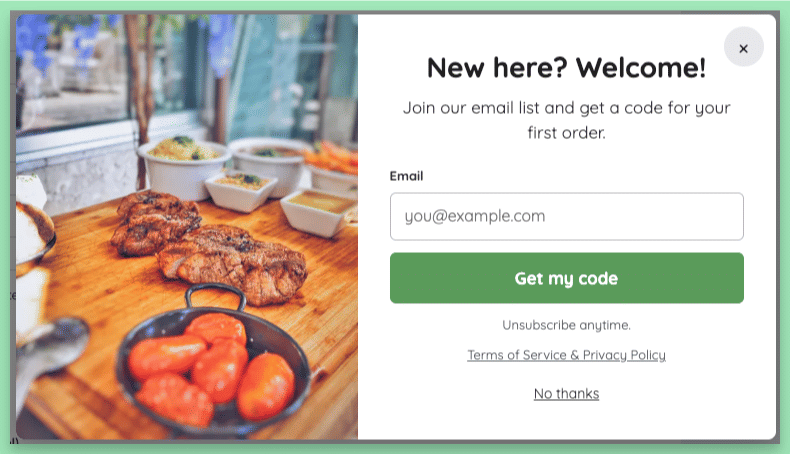
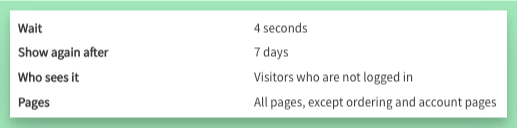
A common complaint about popups is that they're annoying for returning customers. We solve this by allowing you to control how, when, where, and to whom they show:
Find them under Content > Site Popups. Your site already has three example popups waiting as drafts: a welcome offer, a seasonal special and a weekly menu signup. Open one, make it yours, and click Turn on.
- Grow your list. An email popup adds each signup to the same list as your other signup forms, and to Mailchimp if you use it.
- Thank them with a code. Pick a discount code, and every signup sees it right away. A small box keeps the code handy, ready to copy at checkout.
- Show it at the right moment. Choose the wait, the pages, how often it comes back, and who sees it. A popup never gets in the way on your order or account pages.
Want a welcome email to go out too? Start an automation with the Site popup signup trigger.
Site Popups is included on some plans. Compare plans on your billing page.
Take the order for them
Some customers would rather call than click. One missed the cutoff by an hour. Another wants next week sorted today.
With the new Admin order builder, you can build their order yourself, with the same meal choices they'd have on your order page, straight from your admin dashboard.
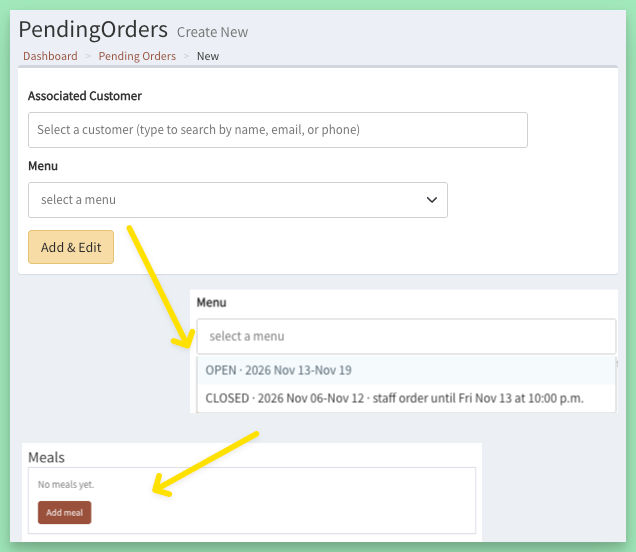
- Go to Orders & Payments > Pending Orders, click New Pending Order, and pick the customer and the menu.
- Pick the OPEN menu and the order shows up in the customer's cart. They can check out themselves, or you can finalize it for them.
- Pick a menu that just CLOSED, or an UPCOMING one, for a staff order the customer doesn't see. Late orders and next week's orders, sorted.
- Set the delivery or pickup location, and add their meals.
- Check the fees, add or remove any, and when the order looks right, click Finalize Now.
Make sure to finalize a late order before the time the menu list shows to get it into your reports (or re-print them after placing the order).
The other options to place late orders (like using impersonation on a forced-open old menu) are still available, this just adds a new tool for you.
How to build an order for a customer
A different delivery day for any location
Got a pickup spot that gets its food a day after everyone else? Previously, the only way to tell customers was a note in the pickup info (and hoping they read it).
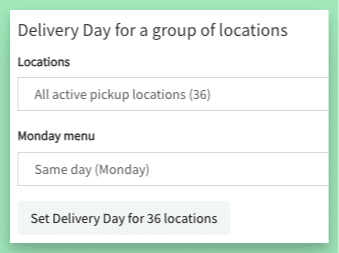
Now, set an alternate Delivery Day on the location, from 3 days before to 6 days after the menu's date. Customers see that day on the order page, in their account and in every order email. Your kitchen keeps working to the menu's date.
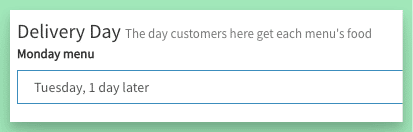
Several locations on the same day? Set it for the whole group on the Locations page. Orders already placed keep their date.
Learn more about pickup locations
Coming soon!
Your admin is getting a makeover. We've created a refreshed design for the admin, with a cleaner, more modern look and feel, and are applying it to Every. Single. Page.
We're still finalizing work on this, but expect this to be out soon - so don't be alarmed when you log in and things look different!
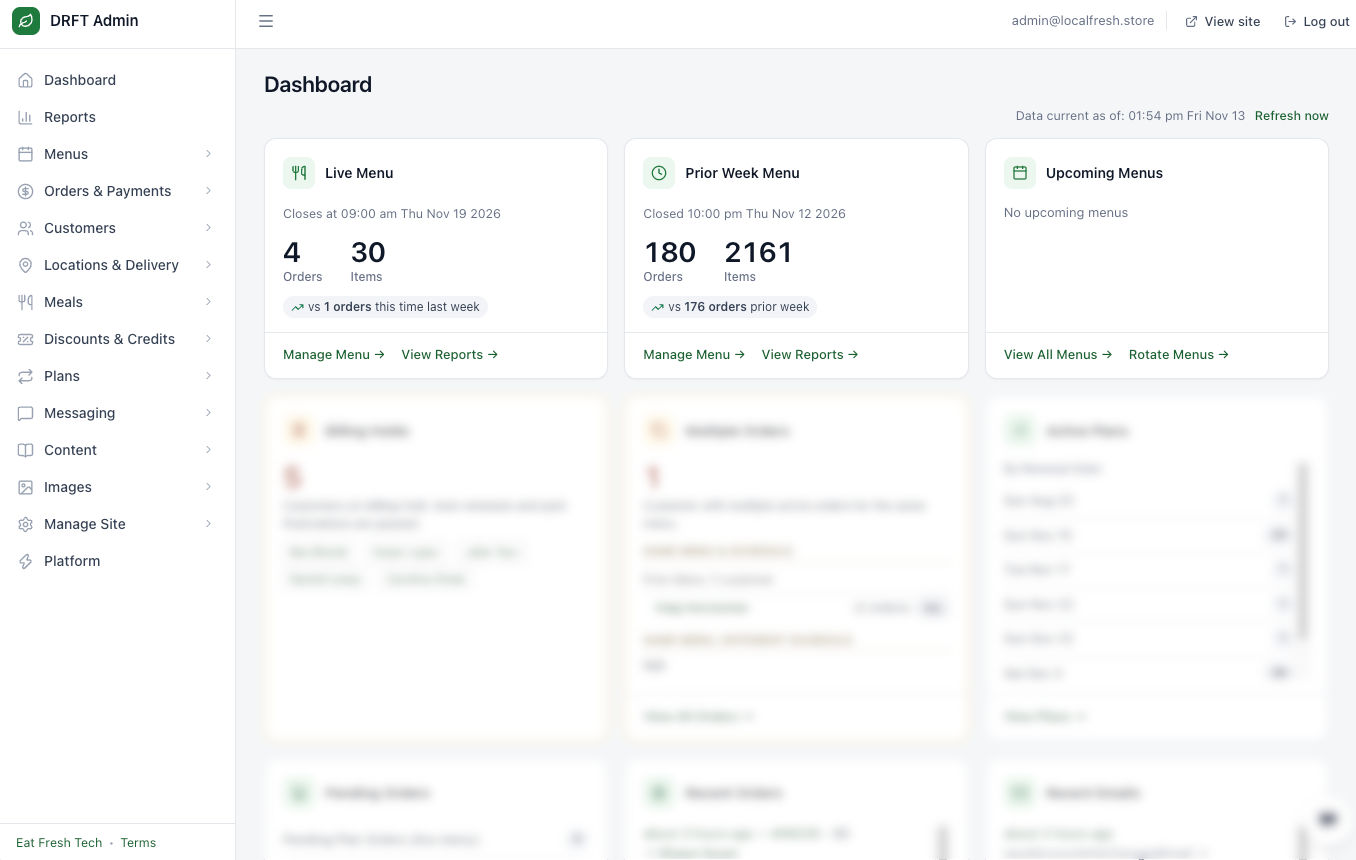
- Same pages, same sidebar. Your menus, orders and reports keep their places in the sidebar.
- Nothing is moved or lost with this - some page titles and links are changing slightly, but pages that do a thing, still do that thing.
- A tidier layout. Some pages arrange things a little differently to improve how details are presented, and so every similar page follows the same pattern.
Your customers won't notice a thing. Your order page and the rest of your public site stay as they are.
Spot something that looks off after the switch? Or something you use is not where you expect? Pop open the admin chat widget and tell me.
A few other updates...
Integrations, at a glance. Each tool on your Integrations page has its own card, with an On or Off label next to each setting. All your tracking IDs live there too.
- Verify your site with Google Search Console from the Google card, and see which searches bring people to you. Google Analytics and Search Console
- New! Connect Microsoft Clarity for free heatmaps and recordings of real visits to your public pages. Microsoft Clarity
Labels your way.
- The switches on the Labels Report choose what each label shows: your logo, ingredients, allergens, dates and more. Click Save Selections as New Default to keep them.
- Turn on Exclude From Labels on an order, and the menu's labels skip it.
- Some label controls used to be gated by plan: they're now available on all plans.
Printing orders, slips and labels
Menus.
- The Menus list shows each menu's Delivery Dates, so you find the right week at a glance.
- New Menu starts on the earliest free week whose cutoff hasn't passed yet, so there are fewer dates to adjust.
New Plan Order, always there. When your plans let customers start their own plan orders, New Plan Order shows on their account page, even when they already placed an order on the live menu. Meal plans and renewals
A clear "Card Declined". When a customer's bank declines a payment during its extra security check (3D Secure), the customer sees Card Declined and that they have not been charged, so they know to try another card. How your site takes payments
Page settings for every admin. Admins with the read-only admin role can now view your page settings. The page editor
Why an address isn't deliverable. On a customer's page, an address you don't deliver to now shows the reason. Customer addresses
Add-to-cart for your ads. With Google Tag Manager or the Facebook Pixel connected, your site sends an add-to-cart event when a customer puts a meal in their cart. Use it to reach people who added a meal but didn't order. Google Analytics and Tag Manager
Clear Pending Orders, right now. The Clear Pending Orders button on your Pending Orders page clears older pending orders, plan orders included, without waiting for the usual timing. Pending orders
From our guides: Spending too much of delivery day driving? Pickup locations or home delivery: how to make fewer stops